- Published on
React Native Hot Updates and CodePush in Practice
Introduction
It has been a long time since my last update.
In the meantime, I did some translation work for the SwiftGG team — feel free to check it out here. On the technical side, I've been focused on React Native: from fighting countless red warning screens to using it in a production project, to getting a solid foundation in place. The main thing that changed was my mindset, so I didn't document much of the technical detail along the way. Now that I'm rolling out a hot-update solution, I've done some research and found there's quite a bit of configuration involved, so I figured I'd write it up.
The main hot-update solutions are Microsoft's CodePush and Pushy. Considering flexibility and security, I leaned toward deploying my own hot-update server — which led me to code-push-server.
I'll just document the steps and the key gotchas. No deep-diving into theory; I'll provide links where relevant.
Environment Setup
The currently stable RN version is 0.44.3, with a corresponding react-native-code-push version of 2.x.
"react": "16.0.0-alpha.6",
"react-native": "0.44.3",
"react-native-code-push": "2.1.1-beta"
Add to your Podfile:
pod 'CodePush', :path => '../node_modules/react-native-code-push'
After npm install, run pod install inside the iOS directory.
If the iOS project fails to compile, clear all caches. Also, 0.44.3 has a bug where import <RCTAnimation/RCTValueAnimatedNode.h> cannot be found. Add a build script to package.json to work around it:
"postinstall": "sed -i '' 's/#import <RCTAnimation\\/RCTValueAnimatedNode.h>/#import \"RCTValueAnimatedNode.h\"/' ./node_modules/react-native/Libraries/NativeAnimation/RCTNativeAnimatedNodesManager.h",
In the iOS project's plist file, add keys CodePushServerURL and CodePushDeploymentKey — the values for these are covered below.
References:
https://github.com/Microsoft/react-native-code-push
https://github.com/coderwin/CodePushCN
Deploying code-push-server
The steps are described in detail in this link. One important thing to note: before starting the server, you must install and start MySQL.
In the config/config.js file, beyond the changes mentioned in the docs, you also need to update: the database host and password, storageDir (change it to your own directory), downloadUrl, and dataDir. Just search for the relevant keywords and update them — otherwise you'll get permission errors when the server tries to create directories.
Other reference: Building Your Own CodePush Update Server for React Native
The CodePushServerURL mentioned above is the URL of your deployed server. For local testing, you can use http://127.0.0.1:3000; for LAN testing, replace it with the appropriate IP address.
CodePushDeploymentKey is the deployment key. Different deployments have different keys.
Code Changes
Modify the bundle-loading code in the iOS project:
jsCodeLocation = [CodePush bundleURLForResource:@"main" withExtension:@"jsbundle" subdirectory:@"bundle"];
CodePush provides several methods for loading resources — use whichever fits your needs.
In AppDelegate, you can import #import <React/RCTLog.h> and enable logging with RCTSetLogThreshold(RCTLogLevelInfo);.
Key JavaScript code:
import CodePush from 'react-native-code-push';

componentDidMount() {
    CodePush.notifyAppReady();//to avoid warnings
    this.syncImmediate();
}

/** Update is downloaded silently, and applied on restart (recommended) */
_sync() {
    CodePush.sync(
    {},
    this._codePushStatusDidChange.bind(this),
    this._codePushDownloadDidProgress.bind(this)
    );
}


/** Update pops a confirmation dialog, and then immediately reboots the app */
syncImmediate() {
    CodePush.sync({
        installMode: CodePush.InstallMode.IMMEDIATE, //Three install modes: ON_NEXT_RESUME, ON_NEXT_RESTART, IMMEDIATE
        updateDialog: {
            appendReleaseDescription:true,//whether to show the update description; default is false
            descriptionPrefix:"Update notes: ",//prefix for the update description; default is " Description:"
            mandatoryContinueButtonLabel:"Update Now",//button text for mandatory updates; default is "continue"
            mandatoryUpdateMessage:"A new version is available. Please update.",//notification for mandatory updates. Defaults to "An update is available that must be installed."
            optionalIgnoreButtonLabel: 'Later',//cancel button text for optional updates; default is "ignore"
            optionalInstallButtonLabel: 'Update in Background',//confirm button text for optional updates. Defaults to "Install"
            optionalUpdateMessage: 'A new version is available. Would you like to update?',//notification for optional updates. Defaults to "An update is available. Would you like to install it?"
            title: 'Update Available'//title of the update notification dialog. Defaults to "Update available."
        }
    },
    this._codePushStatusDidChange.bind(this),
    this._codePushDownloadDidProgress.bind(this)
    );
}

_codePushDownloadDidProgress(progress) {
    console.log(progress);
}

_codePushStatusDidChange(syncStatus) {
    switch(syncStatus) {
        case CodePush.SyncStatus.CHECKING_FOR_UPDATE:
        console.log("Checking for update.");
        break;
        case CodePush.SyncStatus.DOWNLOADING_PACKAGE:
        console.log("Downloading package.");
        break;
        case CodePush.SyncStatus.AWAITING_USER_ACTION:
        console.log("Awaiting user action.");
        break;
        case CodePush.SyncStatus.INSTALLING_UPDATE:
        console.log("Installing update.");
        break;
        case CodePush.SyncStatus.UP_TO_DATE:
        console.log("App up to date.");
        break;
        case CodePush.SyncStatus.UPDATE_IGNORED:
        console.log("Update cancelled by user.");
        break;
        case CodePush.SyncStatus.UPDATE_INSTALLED:
        console.log("Update installed and will be applied on restart.");
        break;
        case CodePush.SyncStatus.UNKNOWN_ERROR:
        console.log("An unknown error occurred.");
        break;
    }
}

let codePushOptions = { checkFrequency: CodePush.CheckFrequency.MANUAL };

APP = CodePush(codePushOptions)(App);

AppRegistry.registerComponent('APP', () => APP);
Hot Update Operations
The main tool is code-push-cli for bundling and publishing updates.
Key command reference: CodePush CLI Commands
The most important command is code-push release-react, which is essentially a combination of react-native bundle and code-push release.
One thing to note: when looking at the help for code-push release-react, there is a parameter worth paying attention to. The default bundle name for iOS is main.jsbundle. I had previously configured the build to output index.ios.jsbundle, but when applying updates the system would complain it couldn't find main.jsbundle, so I changed it.
The --plistFile parameter is used to specify the iOS plist configuration file; the version in that file is used as the base version for the update.
$ code-push release-react
Usage: code-push release-react <appName> <platform> [options]

Options:
  --bundleName, -b           Name of the generated JS bundle file. If unspecified, the standard bundle name will be used, depending on the specified platform: "main.jsbundle" (iOS), "index.android.bundle" (Android) or "index.windows.bundle" (Windows)  [string] [default: null]
  ...
  --plistFile, -p            Path to the plist file which specifies the binary version you want to target this release at (iOS only).  [default: null]
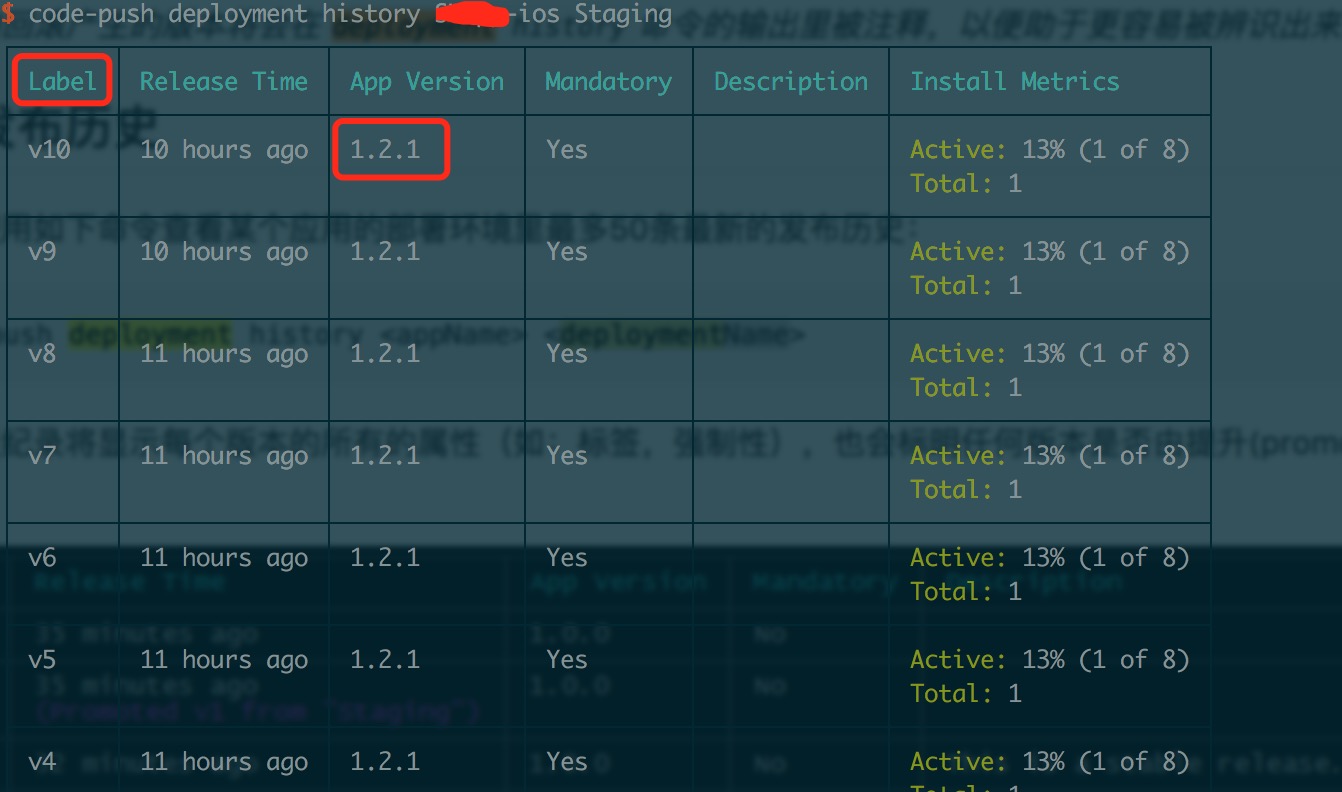
Also, in the CodePush workflow, whether a hot update is available is determined based on the -v parameter in code-push release-react or the version in the plist file. The version of the hot update (i.e., the bundle package version) is identified by a Label. For example, running code-push deployment history <appName> <deploymentName>:
After changing the navigation bar color and running code-push release-react ..., restarting the app shows the updated navigation bar color.
Summary
At this point, the local CodePush deployment is working. Next week I'll move on to project integration and server deployment — I'll document any issues that come up.