- Published on
Using chisel with LLDB
Installation
Install Homebrew
ruby -e "$(curl -fsSL https://raw.githubusercontent.com/Homebrew/install/master/install)"
Install chisel
brew update
brew install chisel
Configuration
After installation, copy the following line into your ~/.lldbinit file. If the file doesn't exist, create it. Make sure to replace /path/to/ with your actual path — if you can't figure this out, maybe software development isn't for you; it's a tough career.
command script import /path/to/fblldb.py
add the following line to your ~/.lldbinit file. If it doesn't exist, create it.
Note: if you encounter permission issues, prepend sudo.
Common Commands
These are Python-wrapped functions. It's worth exploring their implementations if you have time. Personally, I find some of them very useful.
alamborder
Adds a border to views with ambiguous layouts, making it easy to identify which views have issues.
Syntax: alamborder [--color=color] [--width=width]
--color/-c: Border color. String parameter, e.g.,red,green,magenta. Defaults to red.--width/-w: Border width. CGFloat parameter. Defaults to 2.
Example:
(lldb) alamborder
(lldb)
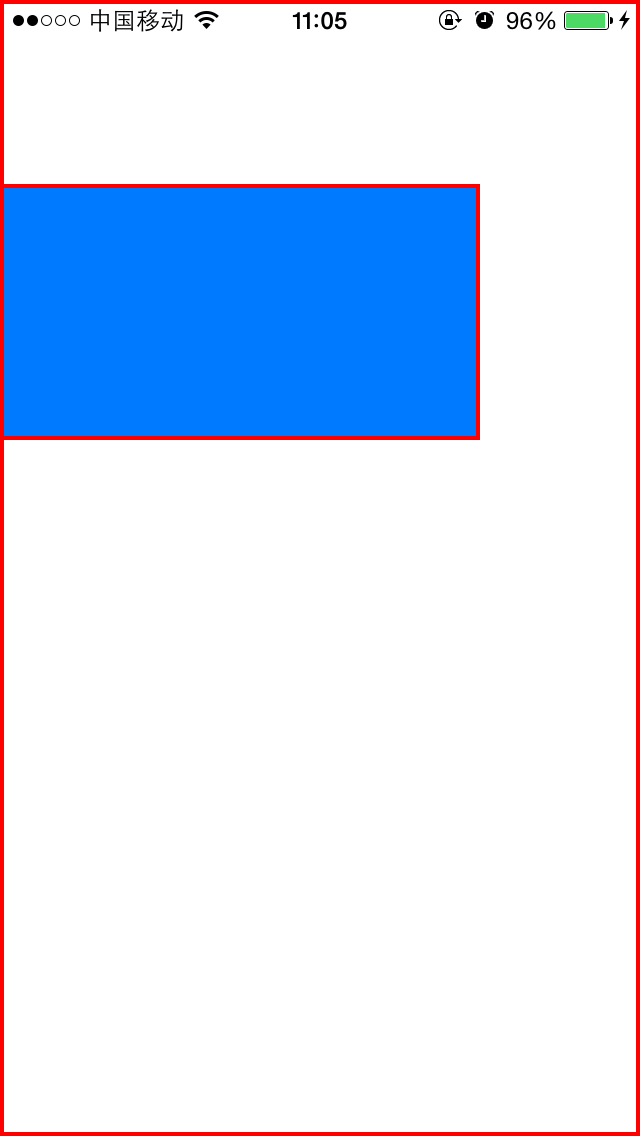
If any view has an ambiguous layout, the UIWindow border also turns red. This effectively catches ambiguous layouts where the width or height is 0 — which are otherwise easy to miss.
alamunborder
Removes the borders added by alamborder.
Syntax: alamunborder
paltrace
Prints detailed Auto Layout information for a view, equivalent to calling _autolayoutTrace.
Syntax: paltrace <view>
<view>: The view to print details for. Defaults tokeyWindowif no argument is provided.
Example:
(lldb) paltrace

UIWindow:0x14ed18300
|   •UIView:0x170185b00
|   |   *UIView:0x170185bd0- AMBIGUOUS LAYOUT for UIView:0x170185bd0.minX{id: 34}
|   |   *_UILayoutGuide:0x1701b18e0
|   |   *_UILayoutGuide:0x1701b19c0
pviews
Recursively prints the view hierarchy, equivalent to calling the recursiveDescription command.
Syntax: pviews [--up] [--depth=depth] <aView>
--up/-u: Starting from the specified view, prints upward through the hierarchy until the window level.--depth/-d: Integer value. Specifies the print depth. 0 means no limit.
Example — printing the app's view hierarchy:
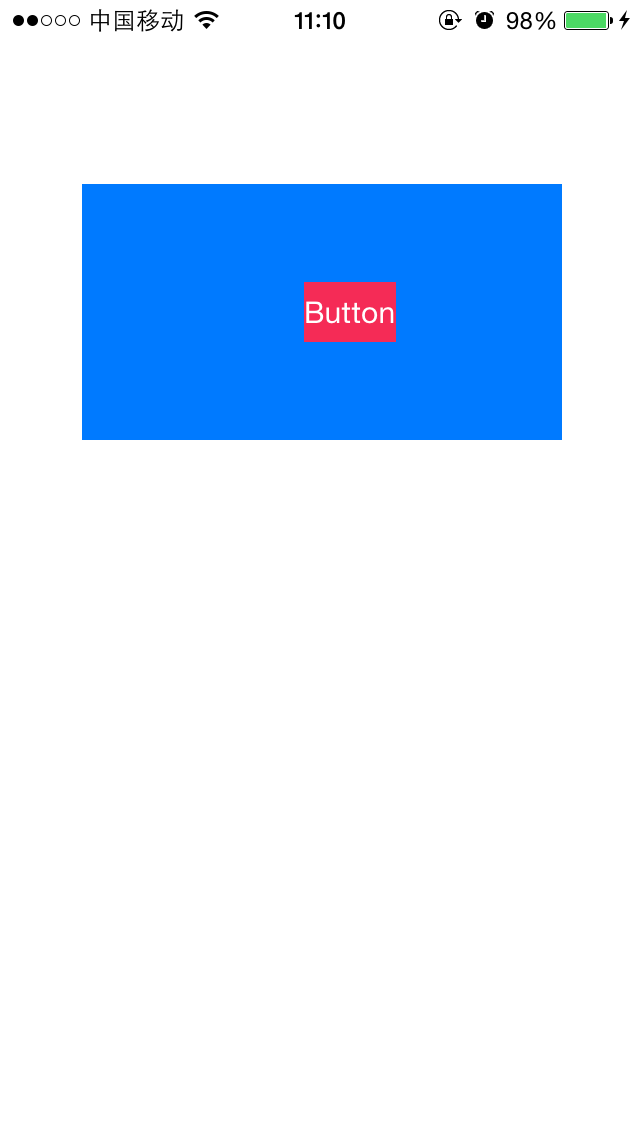
<UIWindow: 0x136602cd0; frame = (0 0; 320 568); gestureRecognizers = <NSArray: 0x174050410>; layer = <UIWindowLayer: 0x17422a5c0>>
   | <UIView: 0x17418f970; frame = (0 0; 320 568); autoresize = W+H; layer = <CALayer: 0x17422aba0>>
   |    | <UIView: 0x17418fa40; frame = (41 92; 240 128); autoresize = RM+BM; layer = <CALayer: 0x17422ab20>>
   |    |    | <UIButton: 0x136515570; frame = (111 49; 46 30); opaque = NO; autoresize = RM+BM; layer = <CALayer: 0x1702266a0>>
   |    |    |    | <UIButtonLabel: 0x1365167a0; frame = (0 6; 46 18); text = 'Button'; opaque = NO; userInteractionEnabled = NO; layer = <_UILabelLayer: 0x1700867c0>>
   |    | <_UILayoutGuide: 0x1741bc000; frame = (0 0; 0 20); hidden = YES; layer = <CALayer: 0x17422ae40>>
   |    | <_UILayoutGuide: 0x1741bc0e0; frame = (0 568; 0 0); hidden = YES; layer = <CALayer: 0x17422ad60>>
pvc
Recursively prints the view controller hierarchy.
Syntax: pvc <aViewController>
<aViewController>: The view controller to print. Defaults to the current VC if no argument is provided.
Example — print the current VC:
(lldb) pvc
<ViewController 0x136514a60>, state: appeared, view: <UIView 0x17418f970>
pclass
Recursively prints the class inheritance chain.
Syntax: pclass <object>
<object>: The object whose class hierarchy you want to print.
Example — print the inheritance chain of the current controller:
(lldb) pclass 0x136514a60
ViewController
   | UIViewController
pclass 0x136514a60
   |    | UIResponder
   |    |    | NSObject
presponder
Prints the responder chain.
Syntax: presponder <startResponder>
<startResponder>: A UIResponder object indicating the start of the responder chain.
Example — print the responder chain for the current controller:
(lldb) presponder 0x136514a60
<ViewController: 0x136514a60>
   | <UIWindow: 0x136602cd0; frame = (0 0; 320 568); gestureRecognizers = <NSArray: 0x174050410>; layer = <UIWindowLayer: 0x17422a5c0>>
   |    | <UIApplication: 0x136602af0>
   |    |    | <AppDelegate: 0x17001d9f0>
ptv
Prints the table view currently displayed on screen. Primarily used together with pcells. If there are multiple table views, prints the topmost one in the view hierarchy.
Syntax: ptv
Example:
(lldb) ptv
<UITableView: 0x147071800; frame = (0 0; 320 568); clipsToBounds = YES; gestureRecognizers = <NSArray: 0x1702466f0>; layer = <CALayer: 0x17022fe40>; contentOffset: {0, -64}; contentSize: {320, 440}>
pcells
Prints the currently visible cells in the table view. If there are multiple table views, uses the topmost one in the view hierarchy.
Syntax: pcells
(lldb) pcells
<__NSArrayI 0x1700b69e0>(
<UITableViewCell: 0x146624340; frame = (0 0; 320 44); text = 'Example1'; autoresize = W; layer = <CALayer: 0x170231480>>,
<UITableViewCell: 0x1465114a0; frame = (0 44; 320 44); text = 'Example2'; autoresize = W; layer = <CALayer: 0x174237e80>>,
<UITableViewCell: 0x146511d10; frame = (0 88; 320 44); text = 'Example3'; autoresize = W; layer = <CALayer: 0x174238160>>,
<UITableViewCell: 0x146512180; frame = (0 132; 320 44); text = 'Example4'; autoresize = W; layer = <CALayer: 0x174238460>>,
<UITableViewCell: 0x1465125f0; frame = (0 176; 320 44); text = 'Example5'; autoresize = W; layer = <CALayer: 0x174238700>>,
<UITableViewCell: 0x146512a60; frame = (0 220; 320 44); text = 'Example6'; autoresize = W; layer = <CALayer: 0x174238440>>,
<UITableViewCell: 0x146512ed0; frame = (0 264; 320 44); text = 'Example7'; autoresize = W; layer = <CALayer: 0x174238ca0>>,
<UITableViewCell: 0x146513340; frame = (0 308; 320 44); text = 'Example8'; autoresize = W; layer = <CALayer: 0x174238f80>>,
<UITableViewCell: 0x146513930; frame = (0 352; 320 44); text = 'Example9'; autoresize = W; layer = <CALayer: 0x174239260>>,
<UITableViewCell: 0x146513da0; frame = (0 396; 320 44); text = 'Example10'; autoresize = W; layer = <CALayer: 0x174239540>>
)
pinternals
Prints the internal instance variables of an object. I typically use this to inspect model properties.
Syntax: pinternals <object>
<object>: The object whose internal instance variables you want to print.
Example — print the internal properties of the current table view (output is lengthy):
(lldb) pinternals 0x147071800
(UITableView) $6 = {
  UIScrollView = {
    UIView = {
      UIResponder = {
        NSObject = {
          isa = UITableView
        }
      }
      _layer = 0x000000017022fe40
      _gestureInfo = nil
      _gestureRecognizers = 0x00000001702466f0 @"2 objects"
      _subviewCache = 0x00000001702496f0 @"13 objects"
      _charge = 0
      _tag = 0
      _viewDelegate = nil
      _backgroundColorSystemColorName = 0x0000000170246bd0 @"tableBackgroundColor"
      _countOfMotionEffectsInSubtree = 0
...
pdata
Decodes and prints encoded NSData, equivalent to calling -[NSString initWithData:encoding:].
Syntax: pdata [--encoding=encoding] <data>
<data>: The NSData object to print.--encoding/-e: Encoding type. Defaults to utf8 if omitted. Supported types include:
- ascii,
- utf8,
- utf16, unicode,
- utf16l (Little endian),
- utf16b (Big endian),
- utf32,
- utf32l (Little endian),
- utf32b (Big endian),
- latin1, iso88591 (88591),
- latin2, iso88592 (88592),
- cp1251 (1251),
- cp1252 (1252),
- cp1253 (1253),
- cp1254 (1254),
- cp1250 (1250),
pkp
Prints the value at a key path using -valueForKeyPath:.
Syntax: pkp <keypath>
<keypath>: The key path to print, e.g.,self.view.
Note: Previously po was commonly used to print properties. Now pkp is a better choice, because po calls the getter method and fails if there is no getter. pkp not only calls the getter but also falls back to looking up instance variables directly.
(lldb) pkp self.view.frame
NSRect: { {0, 0}, {320, 568} }
fvc
Finds a view controller by its class name.
Syntax: fvc [--name=classNameRegex] [--view=view]
--name/-n: String parameter. Finds view controllers by class name.--view/-v: UIView parameter. Finds the view controller that owns the given view.
Note: These two options cannot be used together. The search is case-insensitive. Note: The search is substring-based — any class name containing the search string will be returned.
Example — find Example1ViewController:
(lldb) fvc Example1ViewController
0x14f507290 Example1ViewController
(lldb) fvc example1viewcontroller
0x14f507290 Example1ViewController
(lldb) fvc --name=controller
0x14f51ad00 UINavigationController
0x14f51c8e0 ViewController
Example — find the owning VC by a view's memory address:
(lldb) fvc --view=0x1701876a0
Found the owning view controller.
<ViewController: 0x14f51c8e0>
fv
Finds a view by its class name.
Syntax: fv <classNameRegex>
<classNameRegex>: The view's class name.
Note: The search is substring-based — any class name containing the search string will be returned.
Example — find table views on screen:
(lldb) fv uitableview
(lldb) fv uitableview
0x15006d200 UITableView
0x14f51e290 UITableViewWrapperView
0x14f617710 UITableViewCell
0x1701882d0 UITableViewCellContentView
...
taplog
Prints the view that was tapped. Very helpful for identifying specific views.
Syntax: taplog
Note: The view must be able to receive tap events — its userInteractionEnabled must be YES. UILabel and UIImageView have userInteractionEnabled = NO by default.
Example — pause the program first, then enter taplog:
(lldb) taplog
Process 73484 resuming
The program automatically resumes. Tap a cell:
<UITableViewCellContentView: 0x170187df0; frame = (0 0; 320 43.5); gestureRecognizers = <NSArray: 0x170242b20>; layer = <CALayer: 0x17003d760>>
vs
Searches for and visually highlights a view in the view hierarchy.
Syntax: vs <view>
<view>: The view to find.
Note: Compared to fv, vs is primarily used to show a view's position on screen. The two commands work well together.
Example — find a cell using fv first:
(lldb) fv cell
0x14f617710 UITableViewCell
0x1701882d0 UITableViewCellContentView
0x1701caf50 _UITableViewCellSeparatorView
0x14f617120 UITableViewCell
0x170188200 UITableViewCellContentView
0x1701cae60 _UITableViewCellSeparatorView
0x14f616cb0 UITableViewCell
...
Then use vs to identify which one you're looking for — the corresponding cell turns pink:
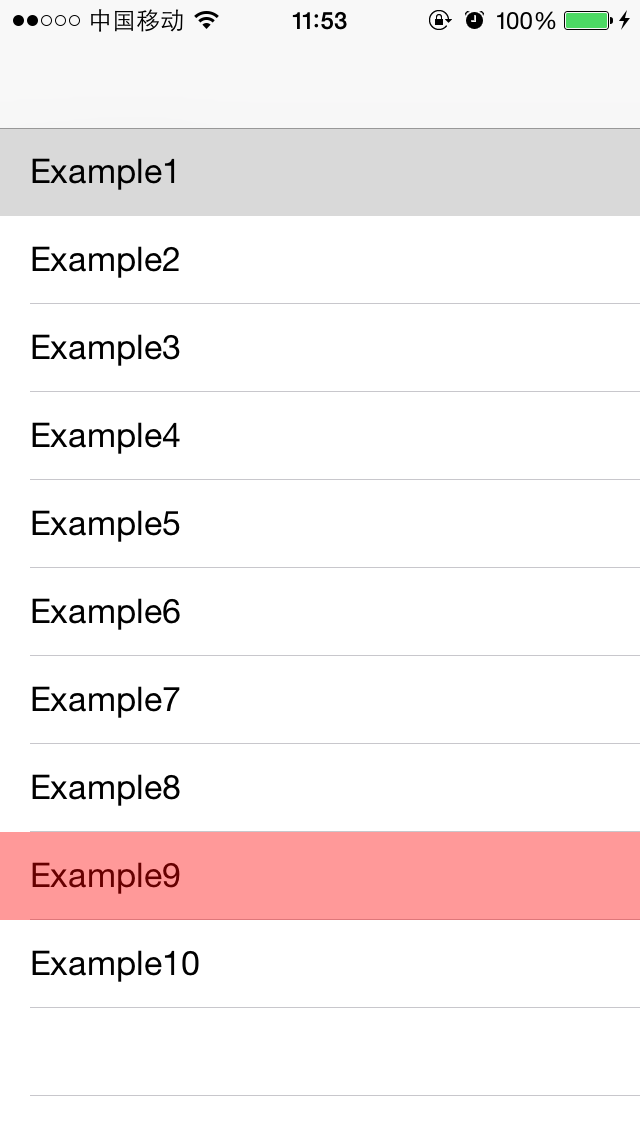
(lldb) vs 0x14f617120

Use the following and (q) to quit.
(w) move to superview
(s) move to first subview
(a) move to previous sibling
(d) move to next sibling
(p) print the hierarchy

<UITableViewCell: 0x14f617120; frame = (0 352; 320 44); text = 'Example9'; autoresize = W; layer = <CALayer: 0x17003e540>>
The console also logs the vs view. Six sub-commands are available:
w: Move to the superviews: Move to the first subviewa: Move to the previous siblingd: Move to the next siblingp: Print the hierarchyq: Quit
If this isn't the view you're looking for, use w, s, a, d, p to keep navigating:
w
<UITableViewWrapperView: 0x14f51e290; frame = (0 0; 320 504); gestureRecognizers = <NSArray: 0x174241c50>; layer = <CALayer: 0x174039120>; contentOffset: {0, 0}; contentSize: {320, 504}>
Quitting with q even gives you a friendly message:
q

I hope 0x000000014f51e290 was what you were looking for. I put it on your clipboard.
caflush
Refreshes the UI. When you modify the UI via LLDB commands, the interface does not update immediately. Use caflush to flush the display.
Syntax: caflush
border
Adds a border to a view or layer.
Syntax: border [--color=color] [--width=width] <viewOrLayer>
--color/-c: Border color. String parameter, e.g.,red,green,magenta. Defaults to red.--width/-w: Border width. Defaults to 2.<viewOrLayer>: The view or layer to add the border to.
Example — add a border to a found view:
(lldb) fv uiview
0x17418f8a0 UIViewControllerWrapperView
0x17418e790 UIView
0x17418e860 UIView
0x17018fcb0 UIView
(lldb) border 0x17418e860
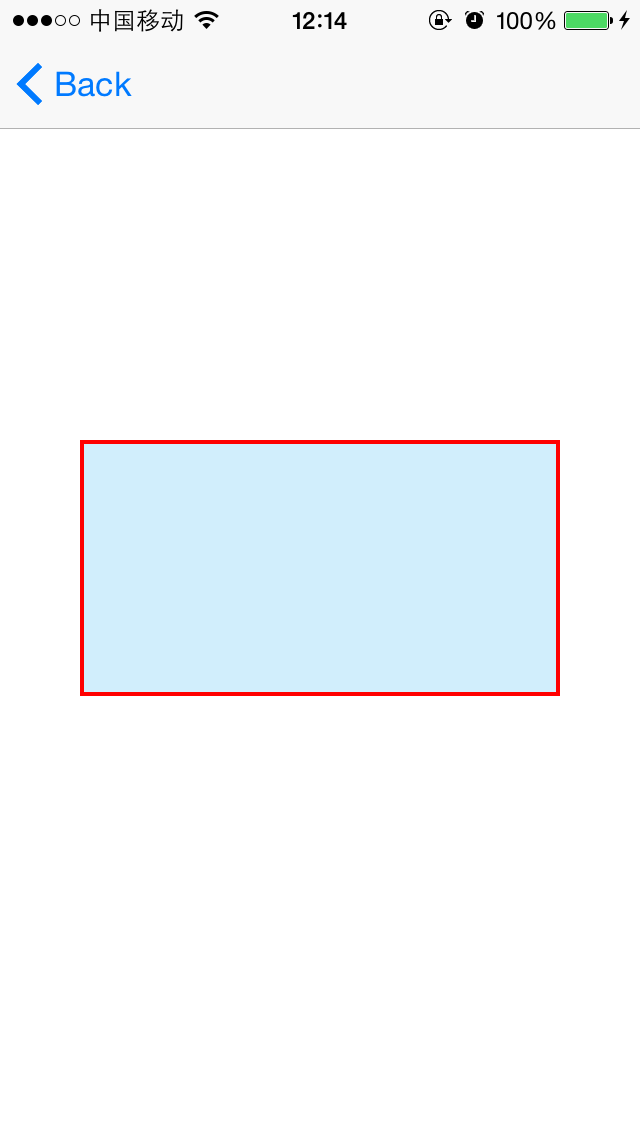
unborder
Removes the border from a view or layer.
Syntax: unborder <viewOrLayer>
mask
Adds a semi-transparent rectangular mask to a view to visualize its position.
Syntax: mask [--color=color] [--alpha=alpha] <viewOrLayer>
--color/-c: Mask color. String parameter, e.g.,red,green,magenta. Defaults to red.--alpha/-a: Mask opacity. Defaults to 0.5.<viewOrLayer>: The view or layer to add the mask to.
Primarily useful for locating hidden views.
unmask
Removes the mask added by mask.
Syntax: unmask <viewOrLayer>
<viewOrLayer>: The view or layer to remove the mask from.
show
Shows a view or layer, equivalent to view.hidden = NO.
Syntax: show <viewOrLayer>
hide
Hides a view or layer, equivalent to view.hidden = YES.
Syntax: hide <viewOrLayer>
<viewOrLayer>: The view or layer to hide.
slowanim
Slows down animations.
Syntax: slowanim <speed>
<speed>: Animation speed. Higher values mean faster animation. 1 is the original speed. Defaults to 0.1 if no argument is provided.
unslowanim
Cancels the slowanim effect and restores normal animation speed.
Syntax: unslowanim
wivar
Sets a watchpoint on an instance variable of an object.
Syntax: wivar <object> <ivarName>
<object>: The object on which to set the watchpoint. Must be of typeid.<ivarName>: The name of the instance variable. Note: properties typically have a corresponding instance variable with a_prefix.
Example — set a watchpoint on self.subView.
bmessage
Sets a breakpoint by method name.
Syntax: bmessage <expression>
<expression>: The method name for the breakpoint, e.g.,-[MyView setFrame:],+[MyView awesomeClassMethod],-[0xabcd1234 setFrame:].
Note: When setting a regular breakpoint, if the method is implemented in a superclass rather than the current class, the breakpoint won't work. bmessage avoids this limitation — it sets the breakpoint successfully even if the current class doesn't implement the method.
(lldb) bmessage -[self viewWillAppear:]
Setting a breakpoint at -[UIViewController viewWillAppear:] with condition (void*)(id)$x0 == 0x00000001545142a0
Breakpoint 3: where = UIKit`-[UIViewController viewWillAppear:], address = 0x000000018cd53e68