- Published on
Loading Resources in iOS
Introduction
I recently encountered a scenario involving loading local resource files. Retrieving resources from the sandbox is fairly straightforward, but accessing resource files from within the app bundle often results in a WebView failing to load them. So I organized my notes on this topic.
Accessing Resources from the Sandbox
The main sandbox directories are:
-
Documents directory: You should write all application data files here. This directory is used to store user data or other information that should be backed up regularly.
-
AppName.app directory: This is the application bundle directory, containing the app itself. Since the app must be code-signed, you cannot modify the contents of this directory at runtime — doing so may prevent the app from launching.
-
Library directory: Contains two subdirectories:
CachesandPreferences. ThePreferencesdirectory holds the app's preference settings files — you should not create these directly, but useNSUserDefaultsto read and write them. TheCachesdirectory is for app-specific support files needed between launches. -
tmp directory: Used to store temporary files that are not needed between launches.
Methods for obtaining these directory paths:
- Get the home directory path:
NSString *homeDir = NSHomeDirectory();
- Get the Documents directory path:
NSArray *paths = NSSearchPathForDirectoriesInDomains(NSDocumentDirectory, NSUserDomainMask, YES);
NSString *docDir = [paths objectAtIndex:0];
- Get the Caches directory path:
NSArray *paths = NSSearchPathForDirectoriesInDomains(NSCachesDirectory, NSUserDomainMask, YES);
NSString *cachesDir = [paths objectAtIndex:0];
- Get the tmp directory path:
NSString *tmpDir = NSTemporaryDirectory();
Accessing App Bundle Resources
NSString *imagePath = [[NSBundle mainBundle] pathForResource:@"apple" ofType:@"png"];
UIImage *appleImage = [[UIImage alloc] initWithContentsOfFile:imagePath];
Common pitfalls:
- When dragging a folder into the project directory, if you select
Create groups, as shown:
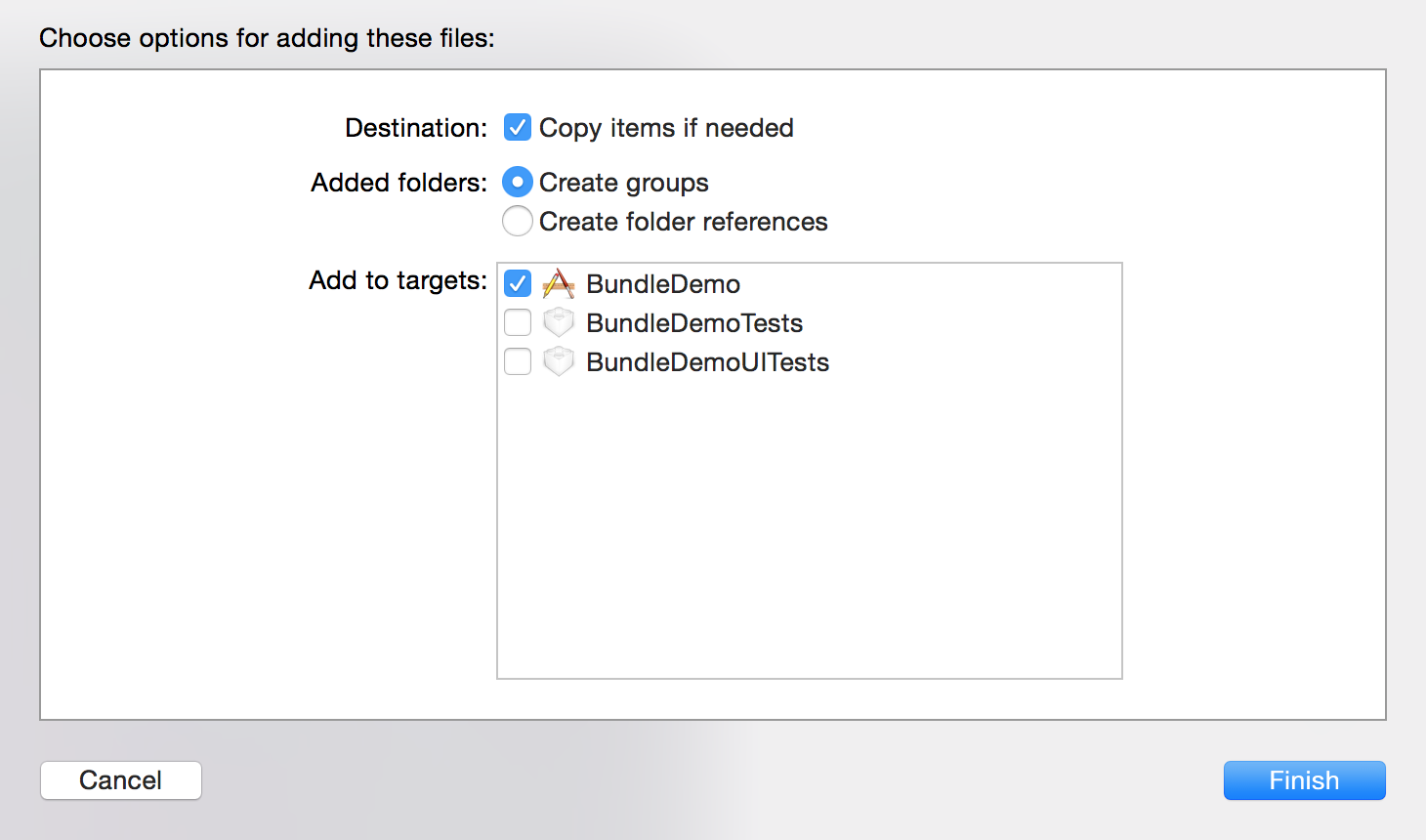
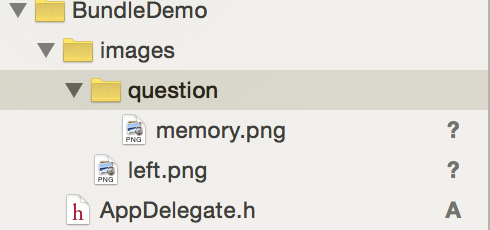
//Using Create Groups
NSString *filePath0 = [[NSBundle mainBundle] pathForResource:@"left" ofType:@"png" inDirectory:@"images"];
NSLog(@"%@", filePath0);
The code above will output null. You must use the form without inDirectory to successfully load the resource:
NSString *filePath = [[NSBundle mainBundle] pathForResource:@"left" ofType:@"png"];
NSData *imageData = [NSData dataWithContentsOfURL:[NSURL fileURLWithPath:filePath]];
self.image.image = [UIImage imageWithData:imageData];

NSString *filePath2 = [[NSBundle mainBundle] pathForResource:@"memory" ofType:@"png"];
NSData *imageData2 = [NSData dataWithContentsOfURL:[NSURL fileURLWithPath:filePath2]];
self.questionView.image = [UIImage imageWithData:imageData2];
The NSBundle object obtained from mainBundle represents the project's root directory. When using groups to organize files, resource files still reside in the project's root folder, as shown:
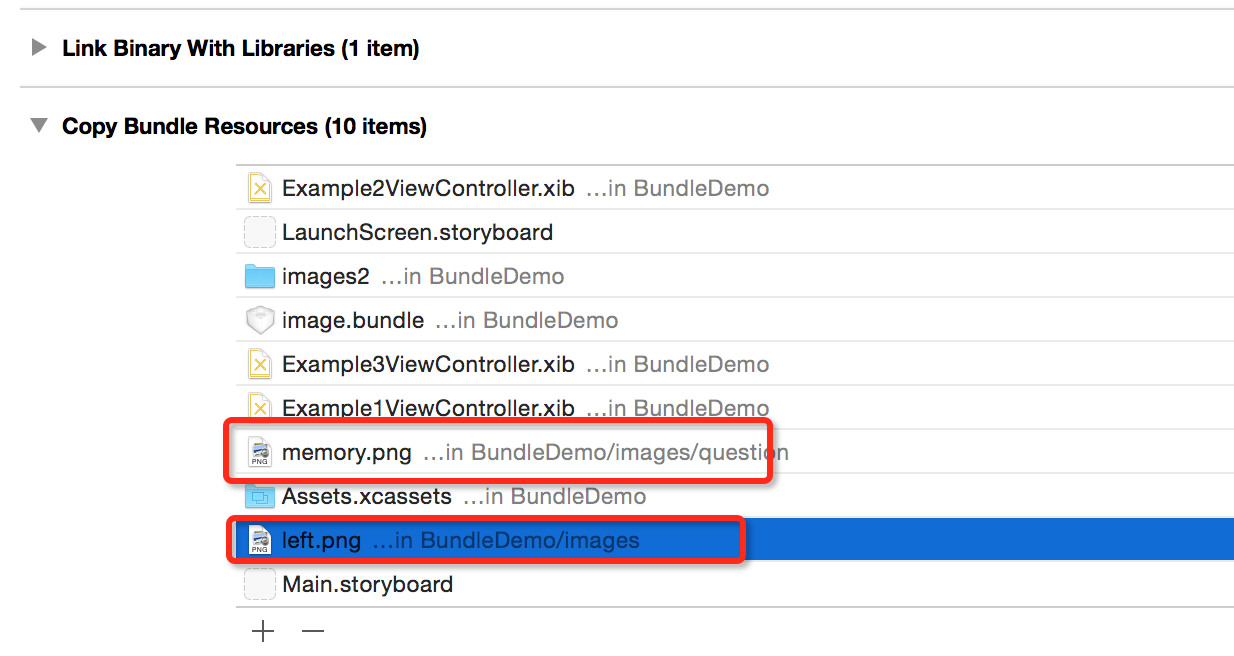
- When dragging a folder into the project directory, if you select
Create folder references, as shown:
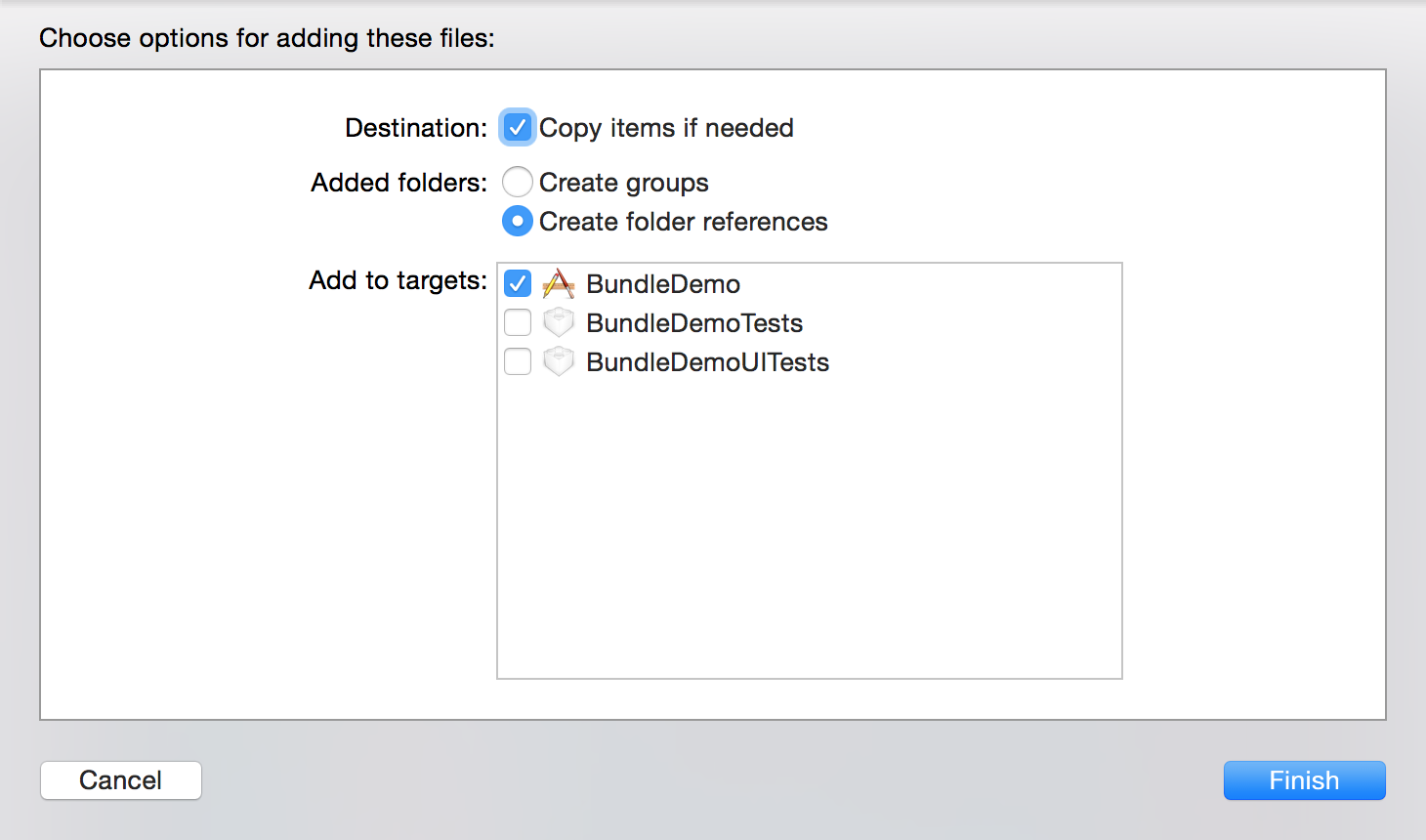
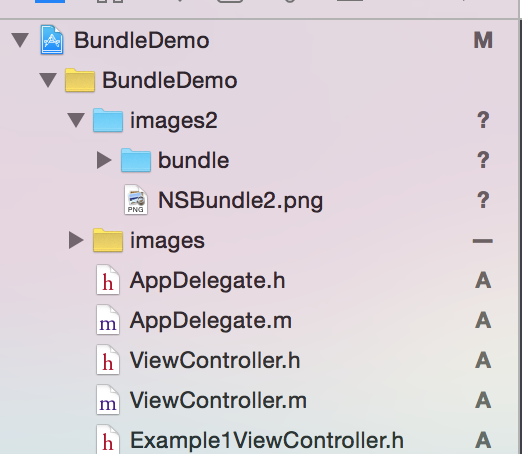
In this case, you must include the inDirectory parameter:
NSString *filePath = [[NSBundle mainBundle] pathForResource:@"NSBundle2" ofType:@"png" inDirectory:@"images2"];
NSData *imageData = [NSData dataWithContentsOfURL:[NSURL fileURLWithPath:filePath]];
self.imageView.image = [UIImage imageWithData:imageData];
Managing Resources with NSBundle
Create a new folder named image, rename it with a .bundle extension (e.g., image.bundle), add the required resource files into this bundle, then drag the bundle into your project. (It seems that regardless of which import option you choose, subfolders will always be in Create folder references mode.)
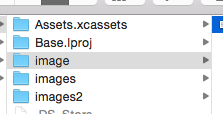

// Get the path to the NSBundle file
NSString * imgBundlePath = [[NSBundle mainBundle] pathForResource:@"image" ofType:@"bundle"];
// Create a new NSBundle object using the path
NSBundle *imgBundle = [NSBundle bundleWithPath:imgBundlePath];

NSString *filePath = [imgBundle pathForResource:@"bundle4" ofType:@"png"];
NSData *imageData = [NSData dataWithContentsOfURL:[NSURL fileURLWithPath:filePath]];
self.imageView.image = [UIImage imageWithData:imageData];

NSString *filePath2 = [imgBundle pathForResource:@"bundle5" ofType:@"png" inDirectory:@"res"];
NSData *imageData2 = [NSData dataWithContentsOfURL:[NSURL fileURLWithPath:filePath2]];
self.imageView2.image = [UIImage imageWithData:imageData2];
Code:
All code from this article can be found on my GitHub at BundleDemo.