- Published on
Efficient Xcode Interface Shortcut Tips
Introduction
A colleague came over to review my code and sighed, "Your screen is completely taken up by navigation bars, toolbars, and the debug area — doesn't that feel cramped?" I fumbled around pressing command+0 frantically to adjust things. Then it occurred to me: it would be great to have some way to quickly switch between different modes — for example, maximizing the editor area in editing mode, and automatically showing the debug area in debug mode.
Areas and Shortcuts
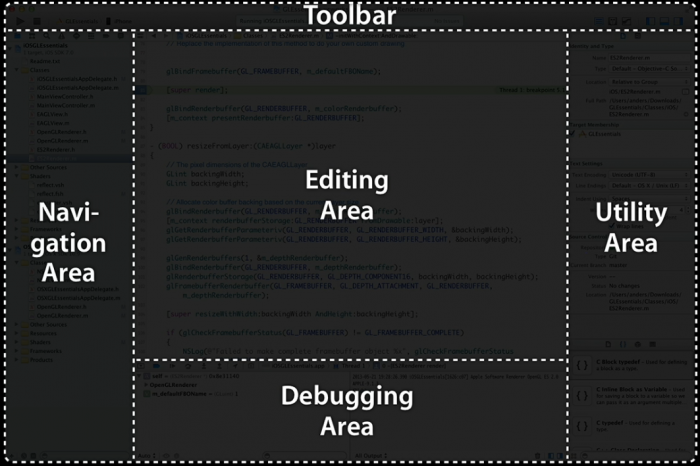
Xcode Interface Areas:
-
The Toolbar: Where you select views, run the app, and switch between different layout interfaces.
-
The Navigation Area: Where you navigate your entire project, warnings, errors, etc.
-
The Editing Area: Where all the magic happens, including the Jump Bar above it.
-
The Utility Area: Contains inspectors and various libraries.
-
The Debugging Area: Includes the debug console and variable inspector.
Xcode Keyboard Shortcuts:
First, the modifier keys:
-
command (⌘): Used for navigation and controlling the navigation area. -
alt/option (⌥): Controls things on the right side, such as theAssistant Editorandutility editor. -
control (⌃): Interacts with theJump Barin the editing area.
Note: the symbol for
shiftis⇧.
Combinations with number keys:
-
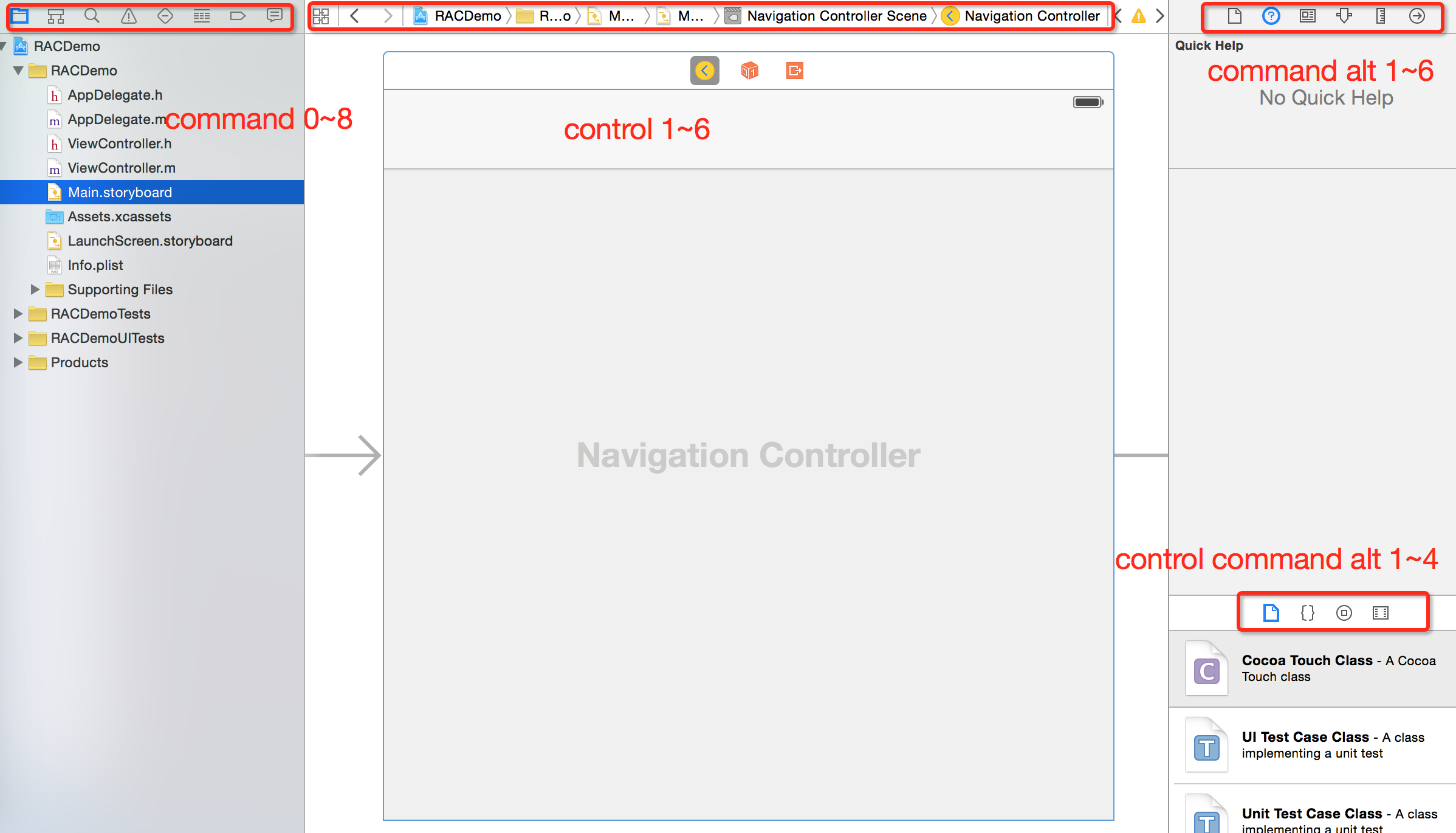
command 1~8: Jump to different sections of the navigation area. -
command 0: Show/hide the navigation area. -
command alt 1~6: Jump between different inspectors. -
command alt 0: Show/hide the utility area. -
control command alt 1~4: Jump between different libraries. -
control 1~6: Jump between different tabs in theJump Bar.
Additional shortcuts:
-
command + enter: Show the standard single-window editor. -
command alt enter: You can probably guess this one — it opens theAssistant Editor. -
command + shift + Y: Show/hide the debug area (Y is my code not working?).
Defining Behaviors
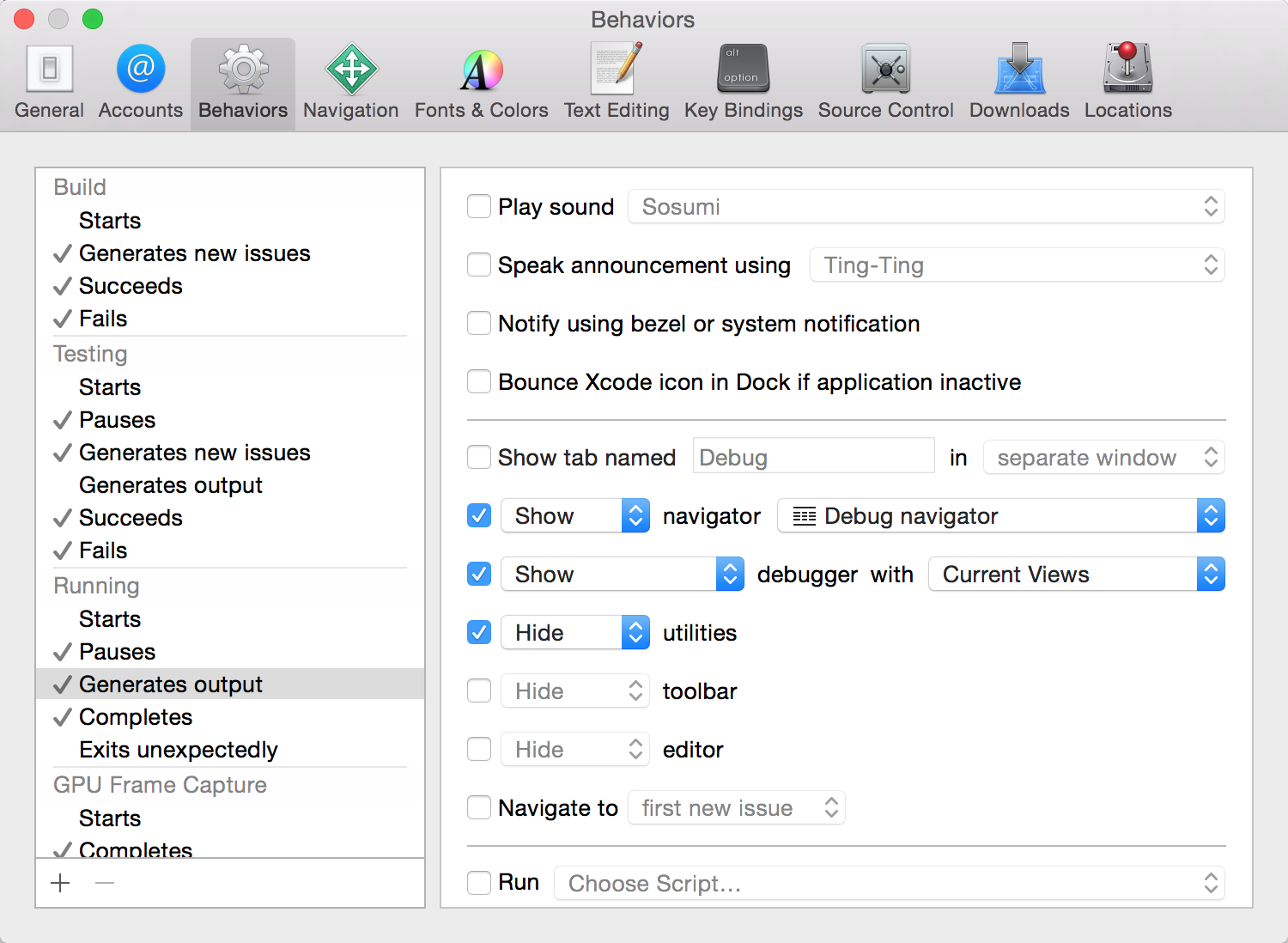
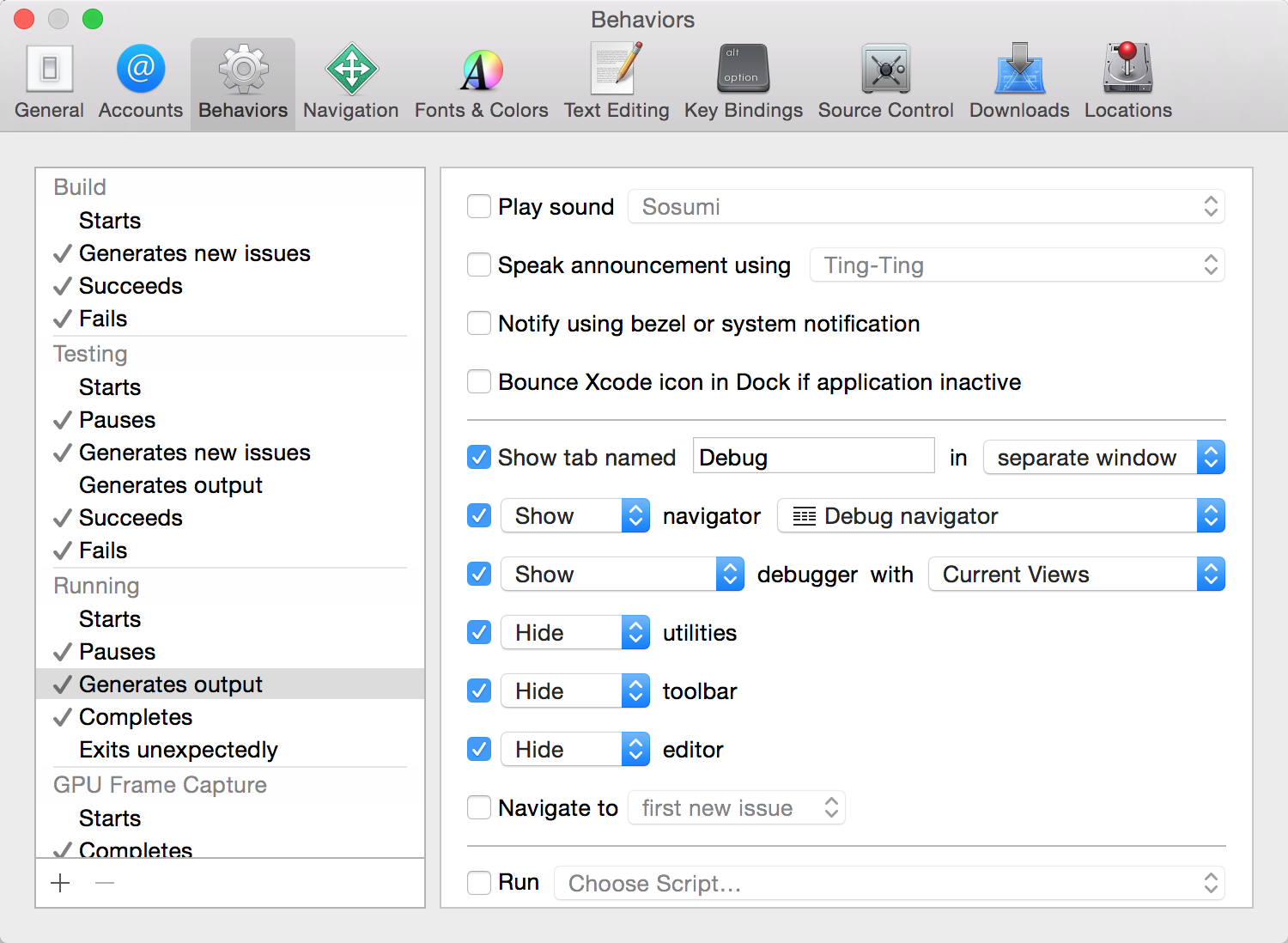
Open Behavior preferences via Xcode -> Behaviors -> Edit Behaviors. The left side shows all events, and the right side lists the actions that can be triggered for each event.
Running
Settings for a single screen:
With dual screens, you can move the debug area to the second screen:
Custom
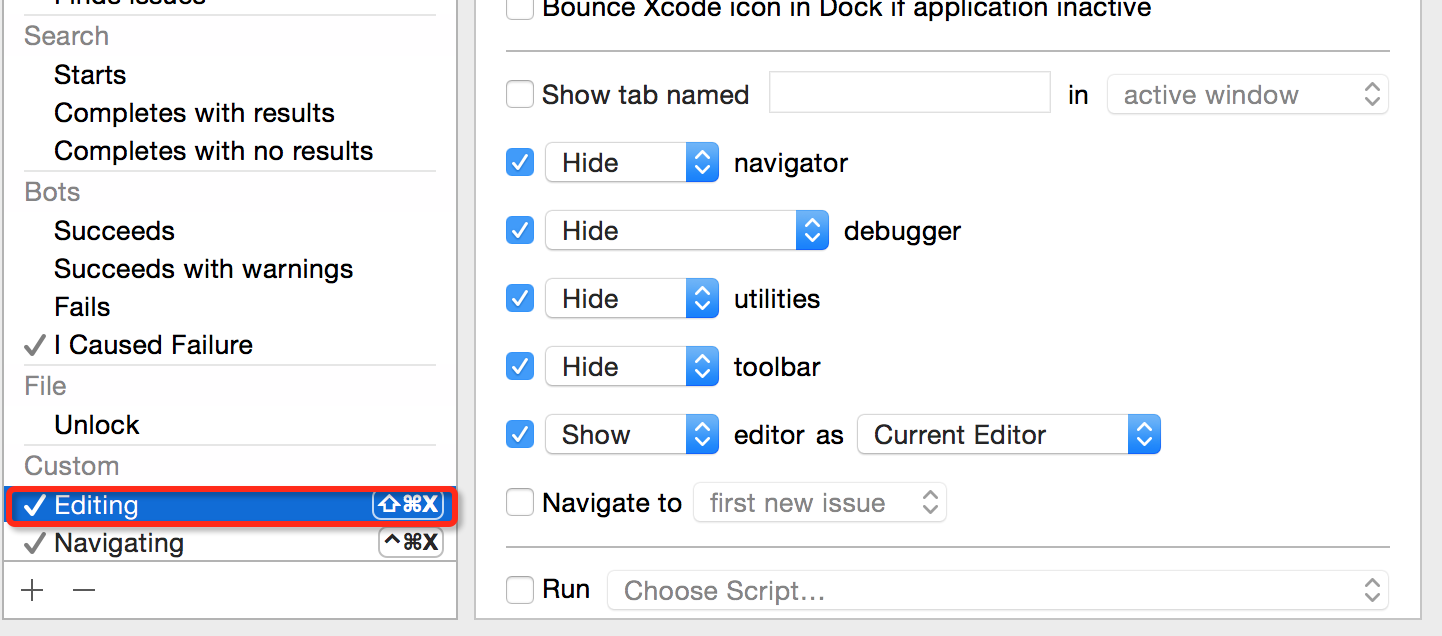
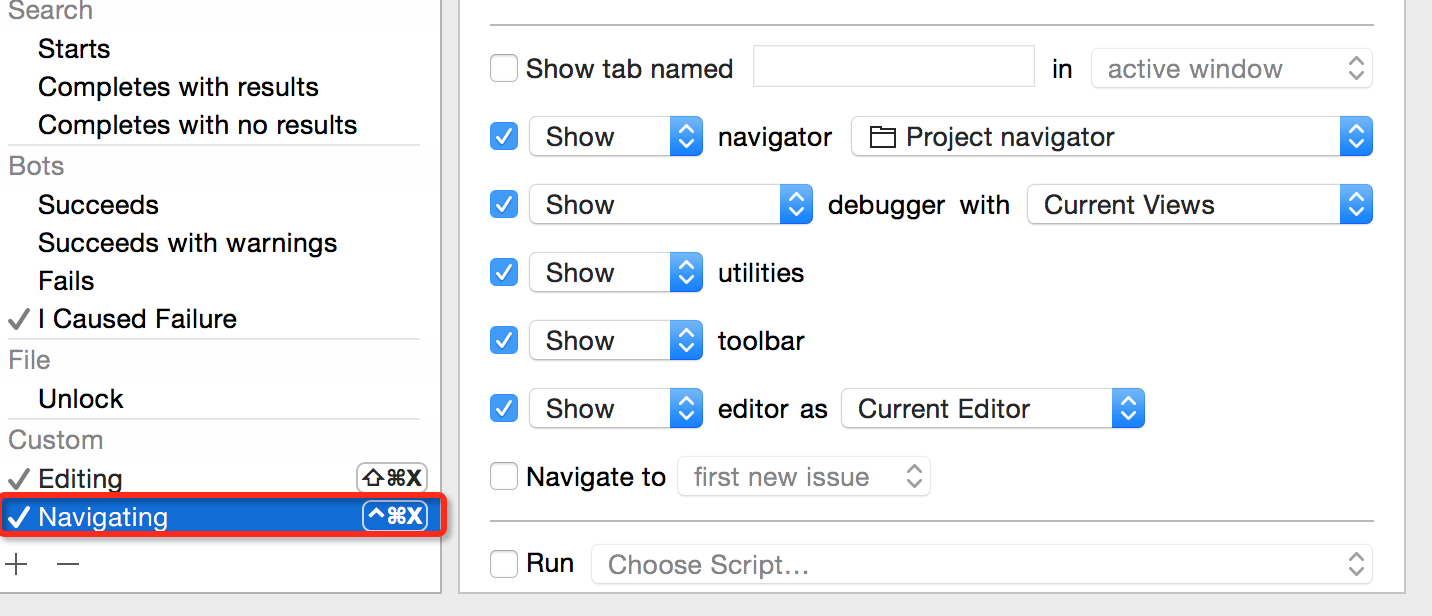
You can also define custom behaviors, which lets you implement the different mode switching I mentioned at the beginning. The only painful part was trying many keyboard combinations before finding ones that worked.
Editing
Pressing command + shift + X enters full-screen editing mode.
Navigating
Pressing command + control + X exits full-screen editing mode and shows all the toolbars.
Give it a try — it's impressively cool!
Reference:
Supercharging Your Xcode Efficiency
Note: the shortcut diagram in the link above contains errors.